
Open the backup browser
- Open Accounts and select the account.
- Click Browse Backups in the account header.
- Use the mailbox sidebar, message list, and reading pane just as you would in a mail app.
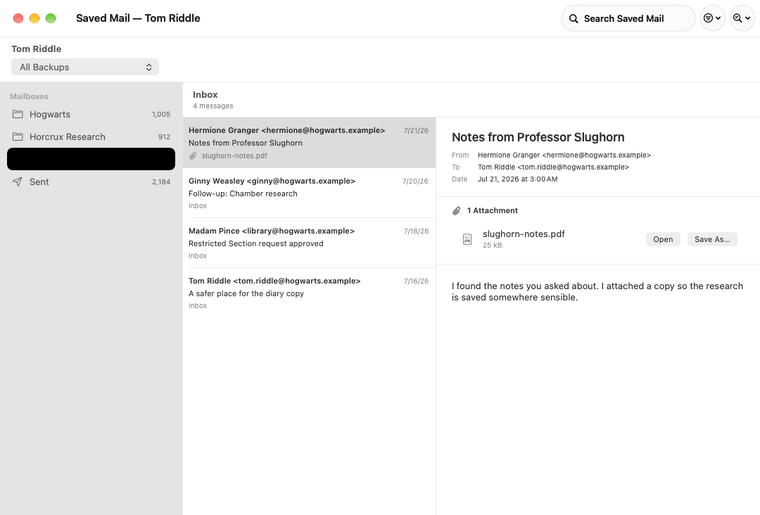
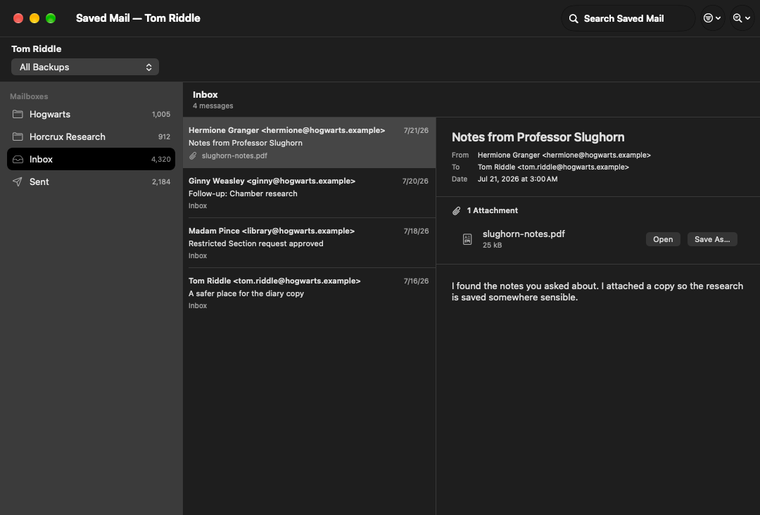
Choose which saved backup to browse
| Backup type | Default browser scope |
|---|---|
| Backup History | All Backups, with repeated messages shown once using their newest saved details. You can choose one dated backup instead. |
| Email Archive | Email Archive, containing every message Horcrux has retained. |
Read messages and attachments
Select a mailbox, then select a message. Horcrux displays ordinary headers and either plain text or HTML. Remote images remain blocked unless you allow them for that message or the current browser session.
Attachments appear as rows with their name and size. You can open an attachment or save it to a location you choose. For a local Backup Location, Show in Finder reveals the saved .eml file.
Looking for a particular message? Search by sender, date, or attachment, or search inside message text.
If a message is marked Missing from source, see how to restore a deleted message.