
This topic has moved. Manage your Backup Locations.
This topic has moved. How backup copies stay in sync.
This topic has moved. How Horcrux reads from another copy.
This topic has moved. Repair a backup with missing messages.
This topic has moved. Reconnect an existing backup.
This topic has moved. What your purchase includes.
This topic has moved. Purchase and ownership questions.
Choose where to save your mail
Click Add Backup Location. If you’ve already set up the location, select it under Recent Backup Locations. To set up a new one, choose the option that matches your storage.
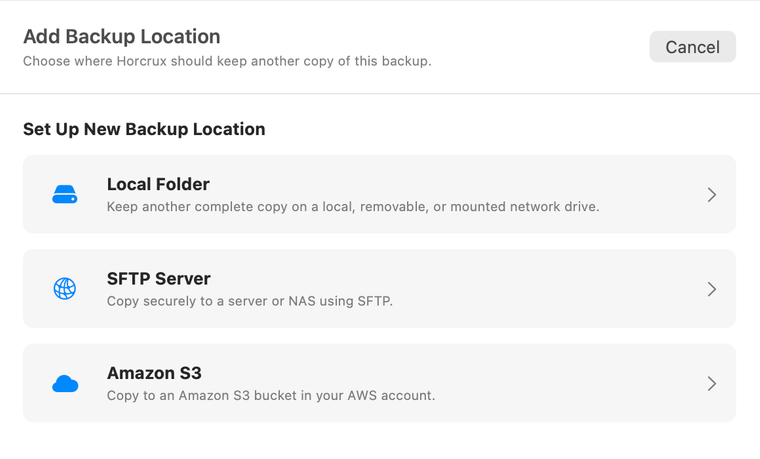
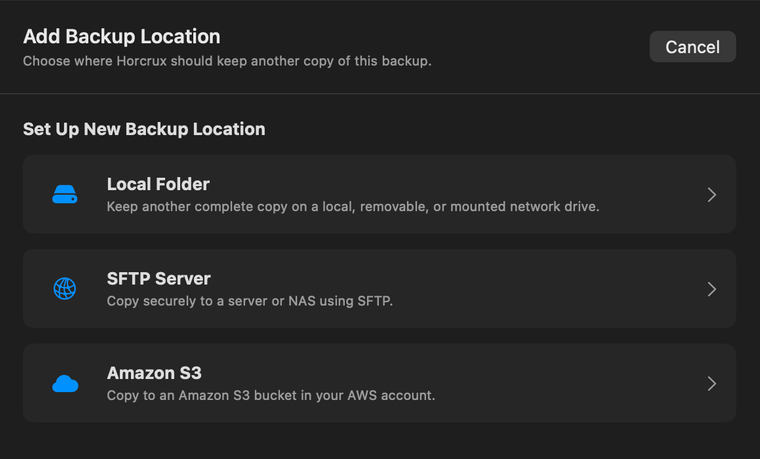
Local Folder. Click Choose Folder and select a folder with room for your mail and attachments. If you prefer an off-site copy, you can send backups directly to your own server or AWS bucket.
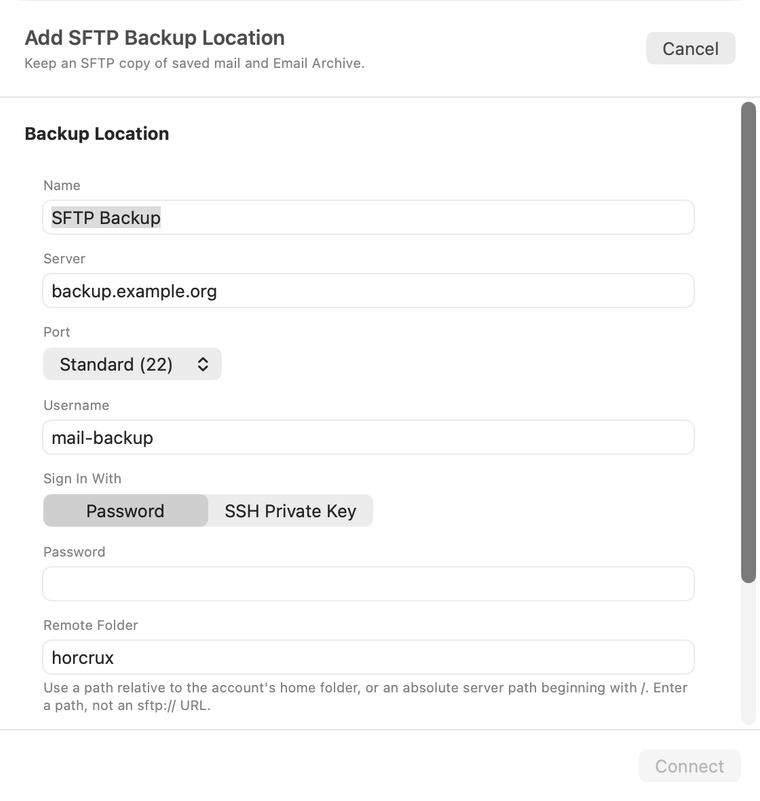
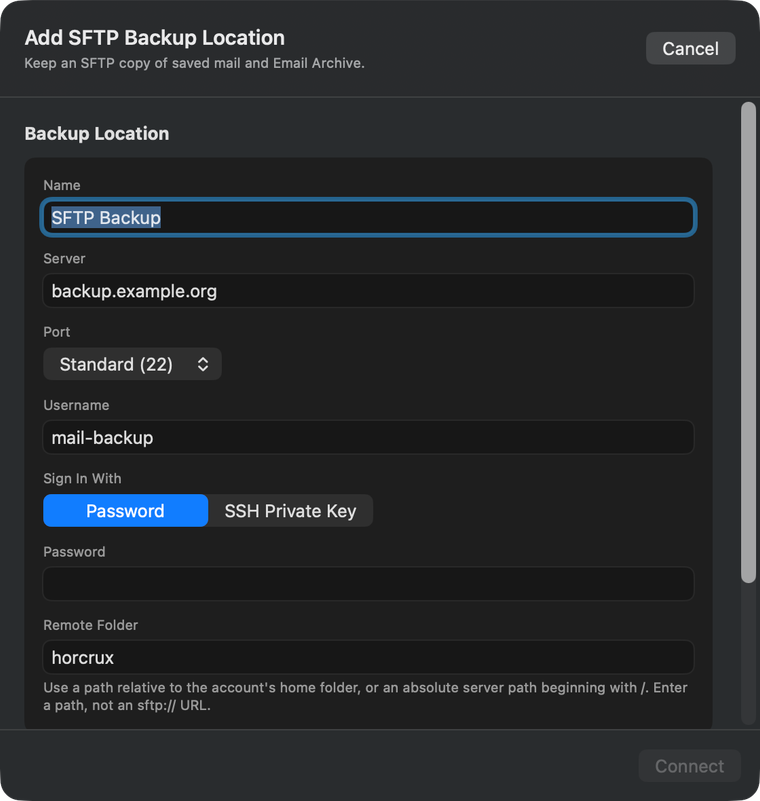
Set up an SFTP server
Enter the hostname, username, and remote folder for your server. Choose password or SSH private key authentication, then click Connect. Check the displayed fingerprint against the one from your server administrator before choosing Trust Server and Add.
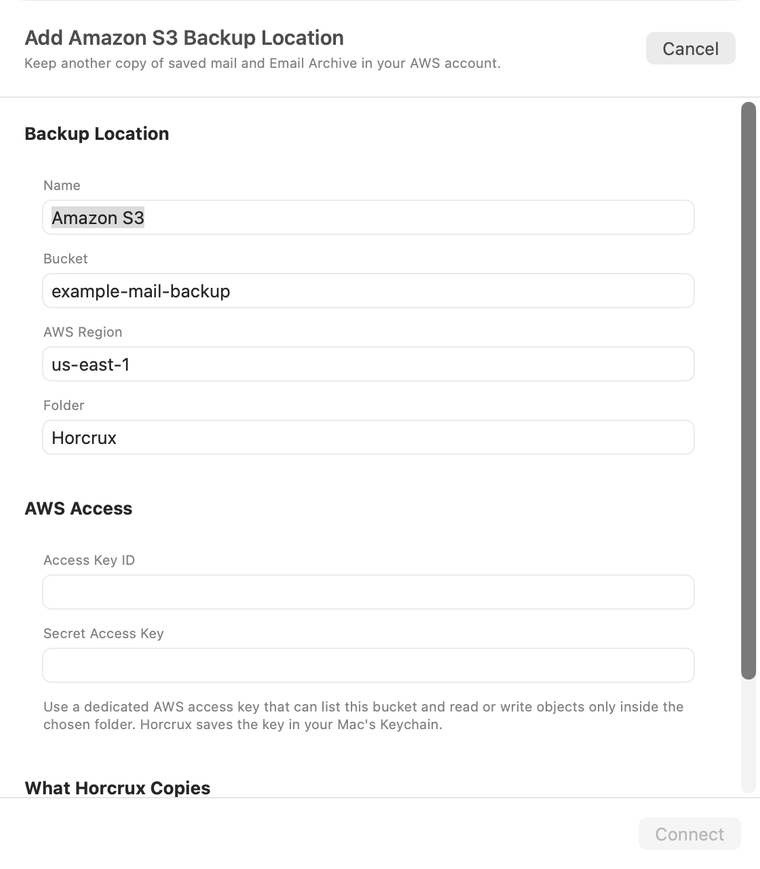
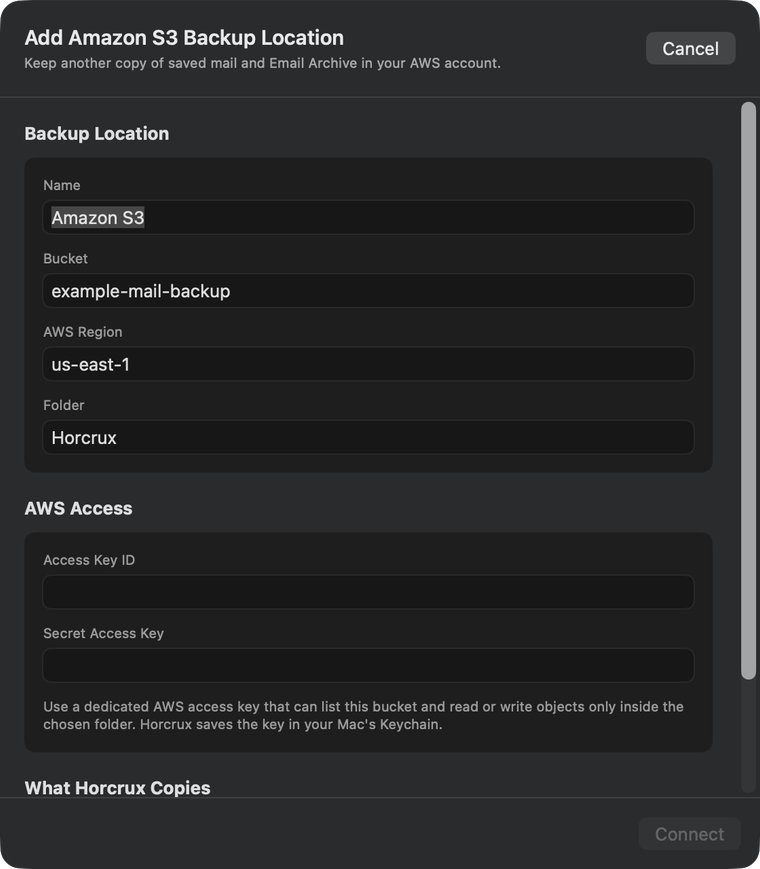
Set up an Amazon S3 bucket
Enter your bucket name, AWS Region, and the folder to use within the bucket. Enter an access key ID and secret access key that can list the bucket and read and write objects in that folder. Click Connect, then Add Backup Location.
Confirm the location and add your account
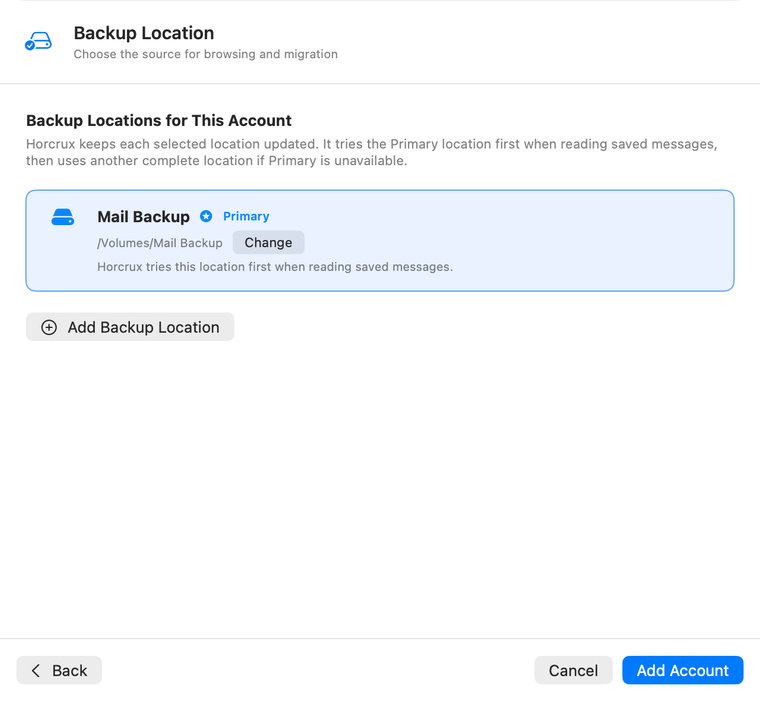
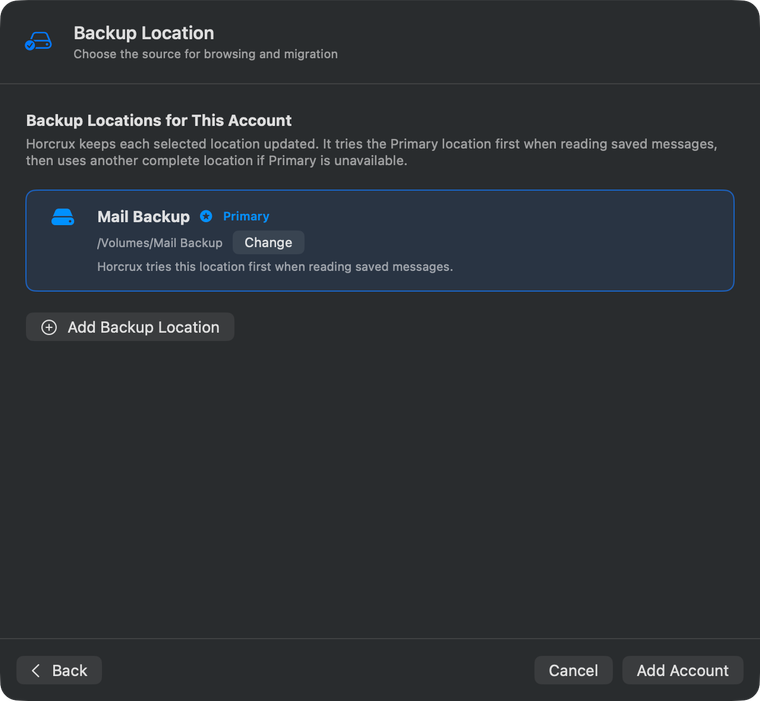
Review the location listed for the account. The first one is marked Primary. Check that it points to the drive, server, or bucket you intended, then click Add Account.
You can add another copy later from Manage Account → Backup Locations. See how multiple Backup Locations work for the controls and what happens when one copy is unavailable.