
Choose your email provider
Open Accounts, click Add Account at the bottom of the sidebar, then choose the provider for the address you want to back up.
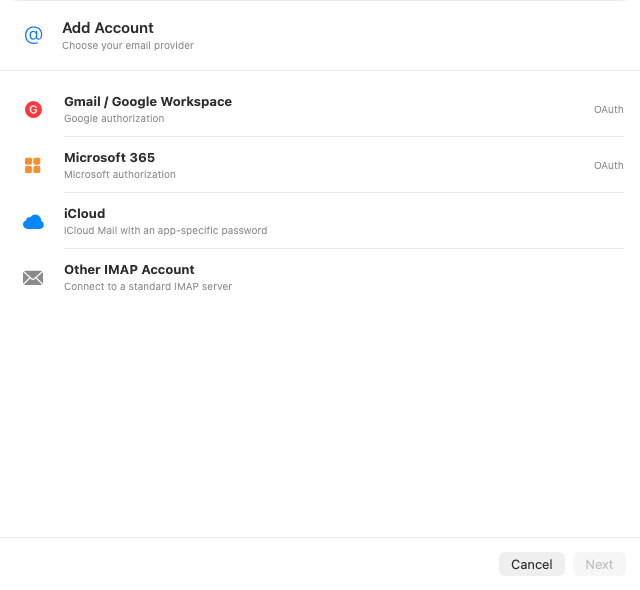
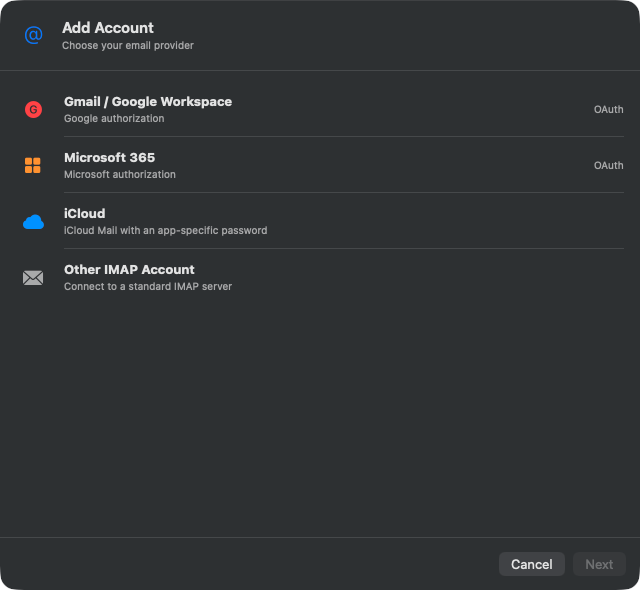
| Provider | Connection |
|---|---|
| Gmail or Google Workspace | Horcrux opens Google sign-in in your browser. For a large mailbox, you can seed your first backup with Google Takeout. |
| Microsoft 365 or Outlook.com | Horcrux opens Microsoft sign-in in your browser. |
| iCloud Mail | Enter an app-specific password from your Apple Account. |
| Other IMAP | Enter the account details. Horcrux first tries to find the server settings automatically. |
Connect and verify the account
For Google or Microsoft, finish authorization in the browser and return to Horcrux. For iCloud or another IMAP provider, enter the requested account details and click Connect.
Horcrux stores saved account credentials in Apple Keychain. Your email is read directly from the provider and saved to the backup location you choose. It does not pass through Horcrux servers.
For Other IMAP, you can leave the hostname blank at first. If automatic discovery does not work, enter the IMAP hostname, port, and TLS setting supplied by your email provider.
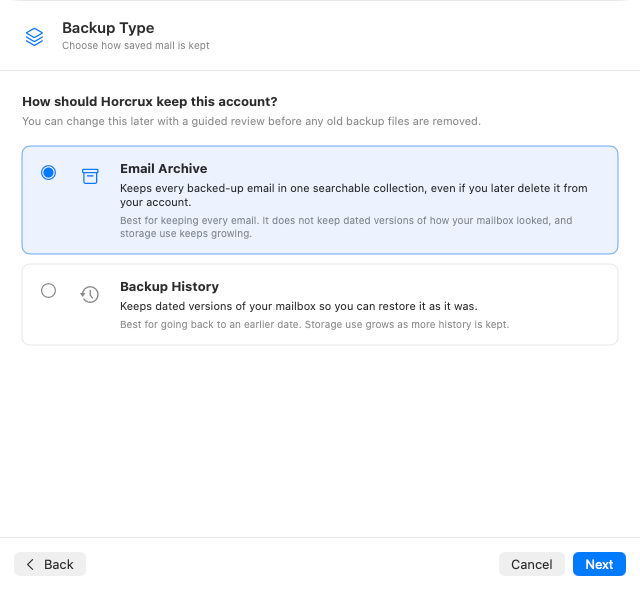
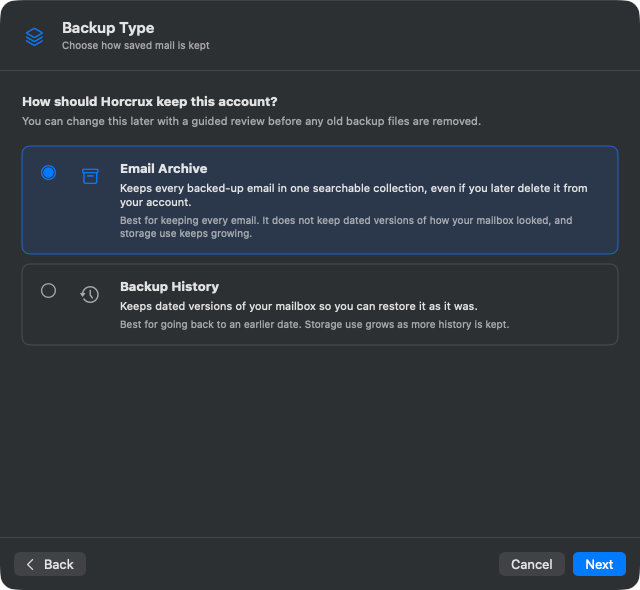
Choose how Horcrux keeps saved mail
Email Archive is the default. Keep it to save every backed-up message, even if you later delete it from the account. Choose Backup History to browse or restore the mailbox as it looked on a particular day.
Choose a schedule and Library
Choose how often you want Horcrux to back up this account. You can change the schedule later in Manage Account.
If no Horcrux Library has been selected yet, setup asks for it first. The Library holds account settings, search indexes, and other working data. Keep it on reliable internal storage when possible.
Review the mailbox selection
Horcrux lists the mailboxes it found. Drafts, Trash, and Spam or Junk start unchecked when Horcrux can identify them. Leave the defaults unless you know you need those folders.
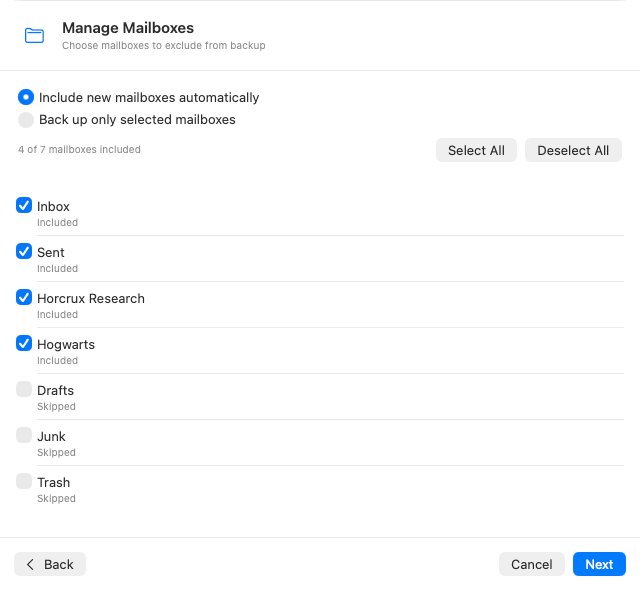
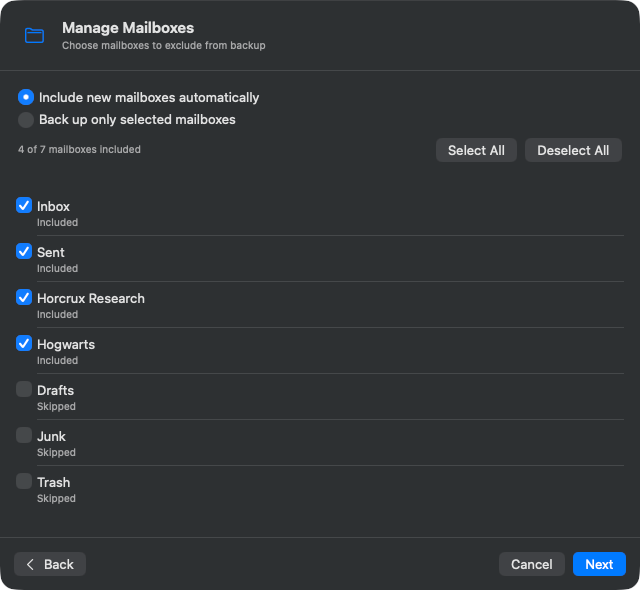
When the mailbox list looks right, continue to Backup Locations. This is where you’ll choose storage for your first backup.
Troubleshooting account setup
Google or Microsoft sign-in did not return to Horcrux
Return to Horcrux and try again. Allow the browser to open Horcrux after authorization. If the account already appears in the sidebar, open Manage Account and choose Reconnect.
iCloud says the password is incorrect
Your normal Apple Account password does not work for this connection. Create an app-specific password in your Apple Account security settings and enter that password in Horcrux.
Horcrux could not find the IMAP server
Ask the provider for its IMAP hostname, port, encryption setting, and username format. Make sure IMAP access is enabled, then enter those details in the manual fields.